Local vault
Imported media is encrypted with AES-256 and stored in Media Vault. Without a separate backup, files remain on that device.
iOS · ANDROID
Keep private photos and videos in an encrypted vault on iOS and Android. Media Vault uses AES-256 to protect each imported file.
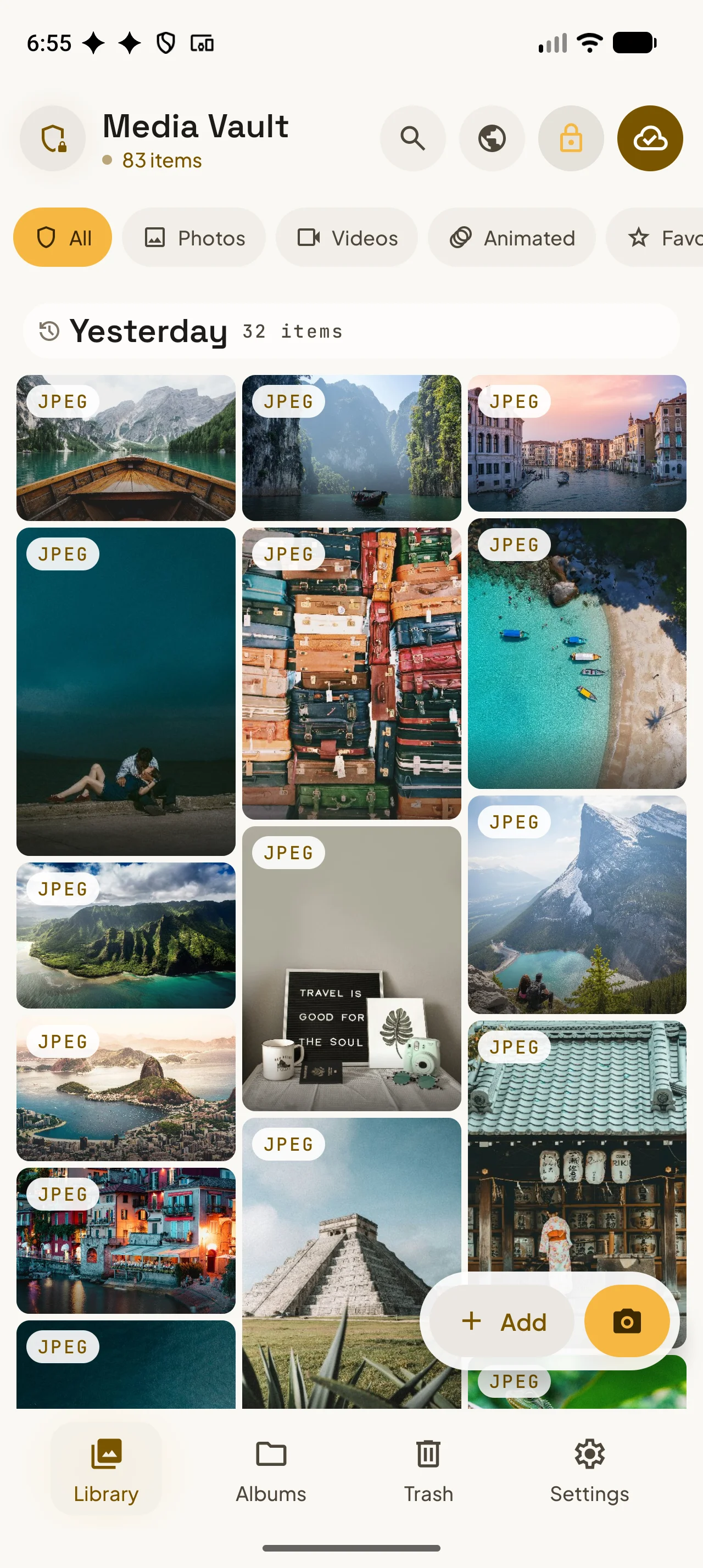


Each imported photo and video is encrypted with AES-256 before it is stored in the vault.
Media Vault encrypts the complete photo or video file, not only its header or preview.
Files are encrypted on your device before upload. Google Drive stores encrypted data, and Lefila cannot decrypt or view your backup.
BACKUP & RECOVERY
Media Vault stores your vault on your device. Pro adds optional Google Drive sync; you choose when to enable it.
Imported media is encrypted with AES-256 and stored in Media Vault. Without a separate backup, files remain on that device.
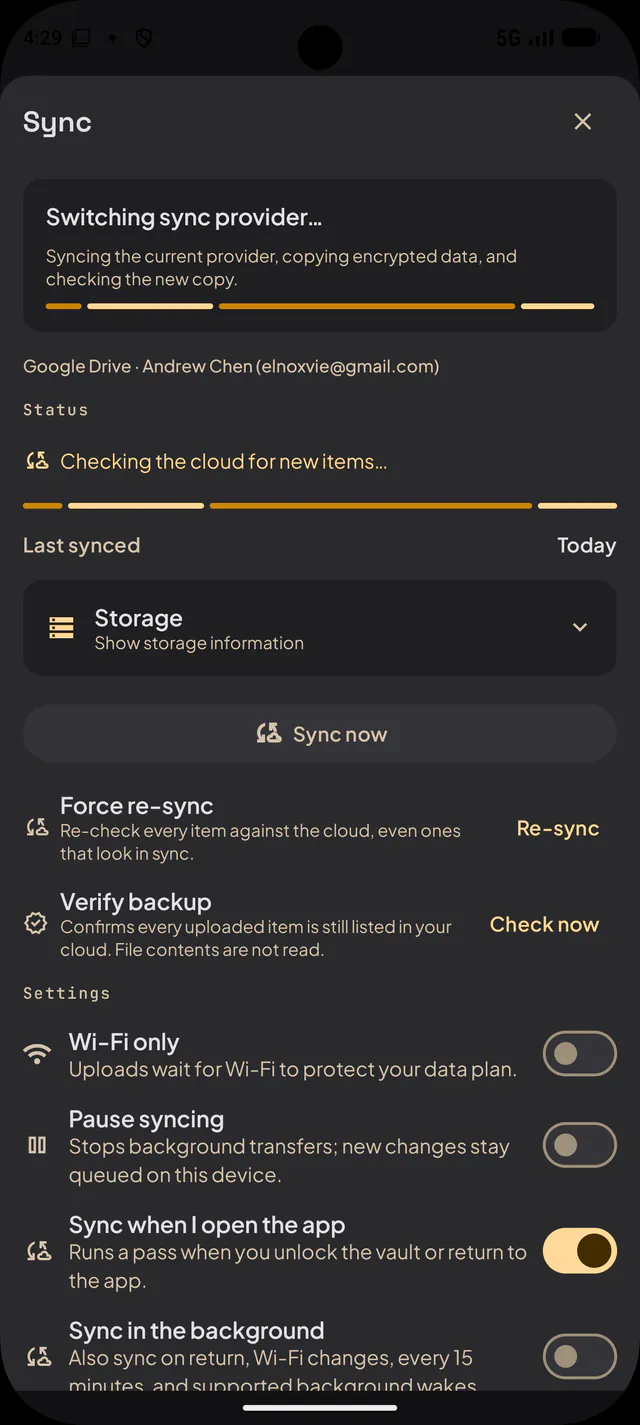
Turn on Sync & backup in Settings and connect your Google account. Files are encrypted before upload; Lefila cannot decrypt or view the backup. Wait for the first sync to finish.
With Pro, use the same Google account on the new phone to restore. On the free plan, export from the old phone and import on the new one. Check your files before wiping the old device.
A vault on one phone is not a separate backup. Google Drive sync must be enabled and complete before relying on it for recovery.
11 FEATURES
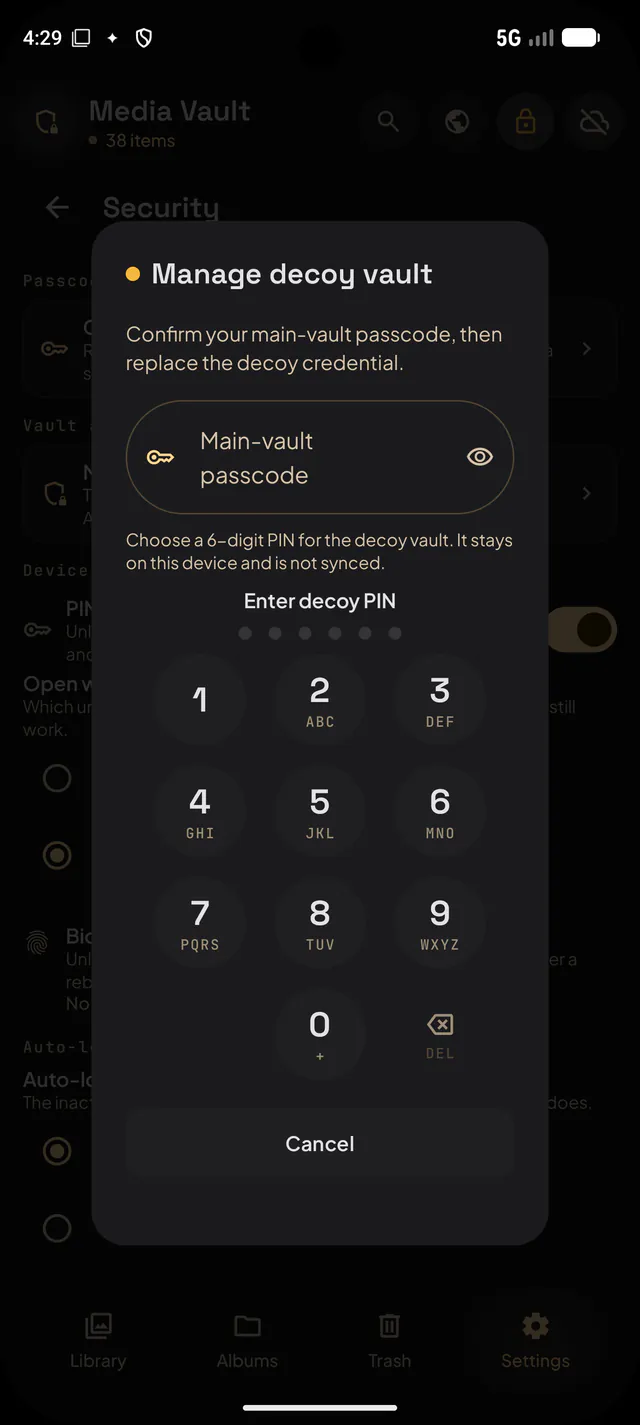
A second PIN opens a separate vault with only the items you add to it.
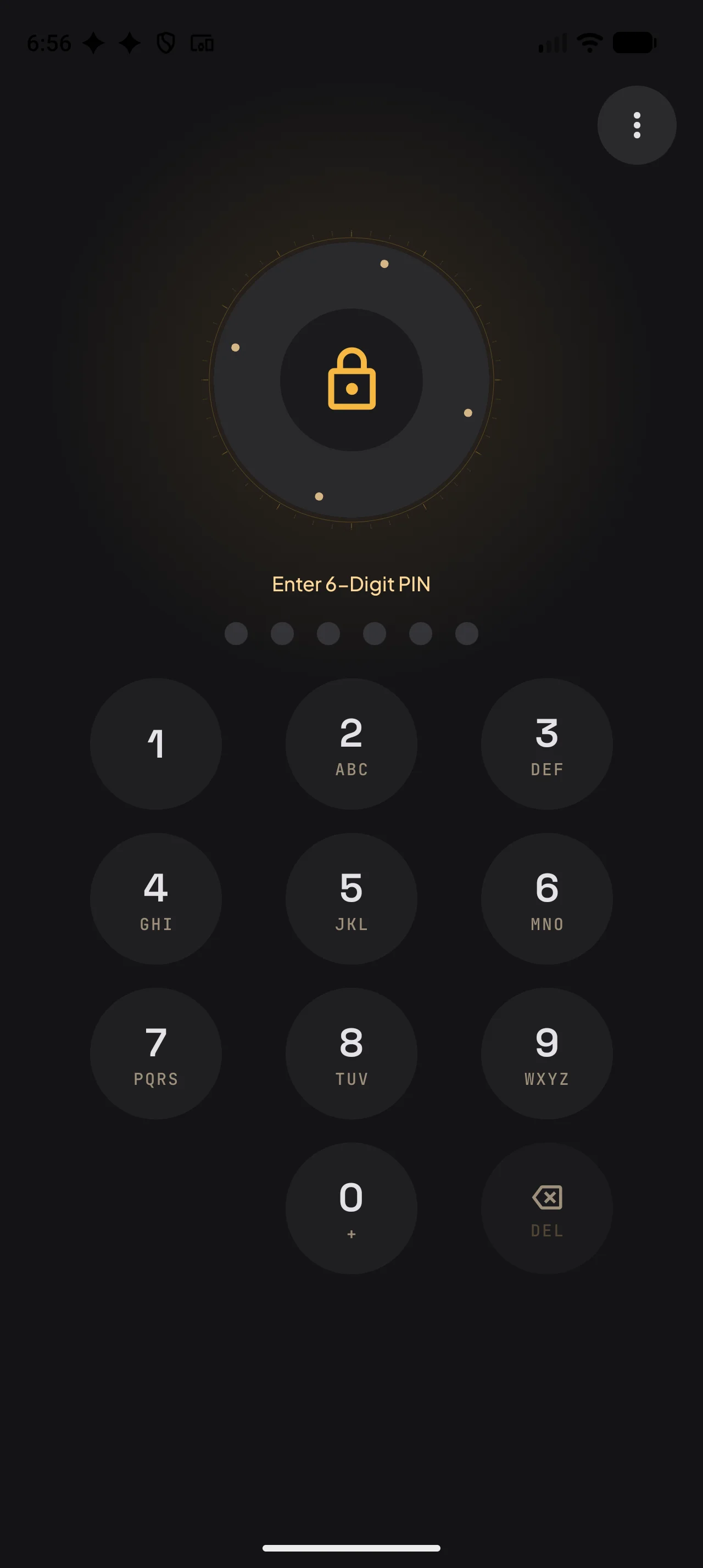
Choose a 4–6 digit PIN or a full passcode to lock the app.
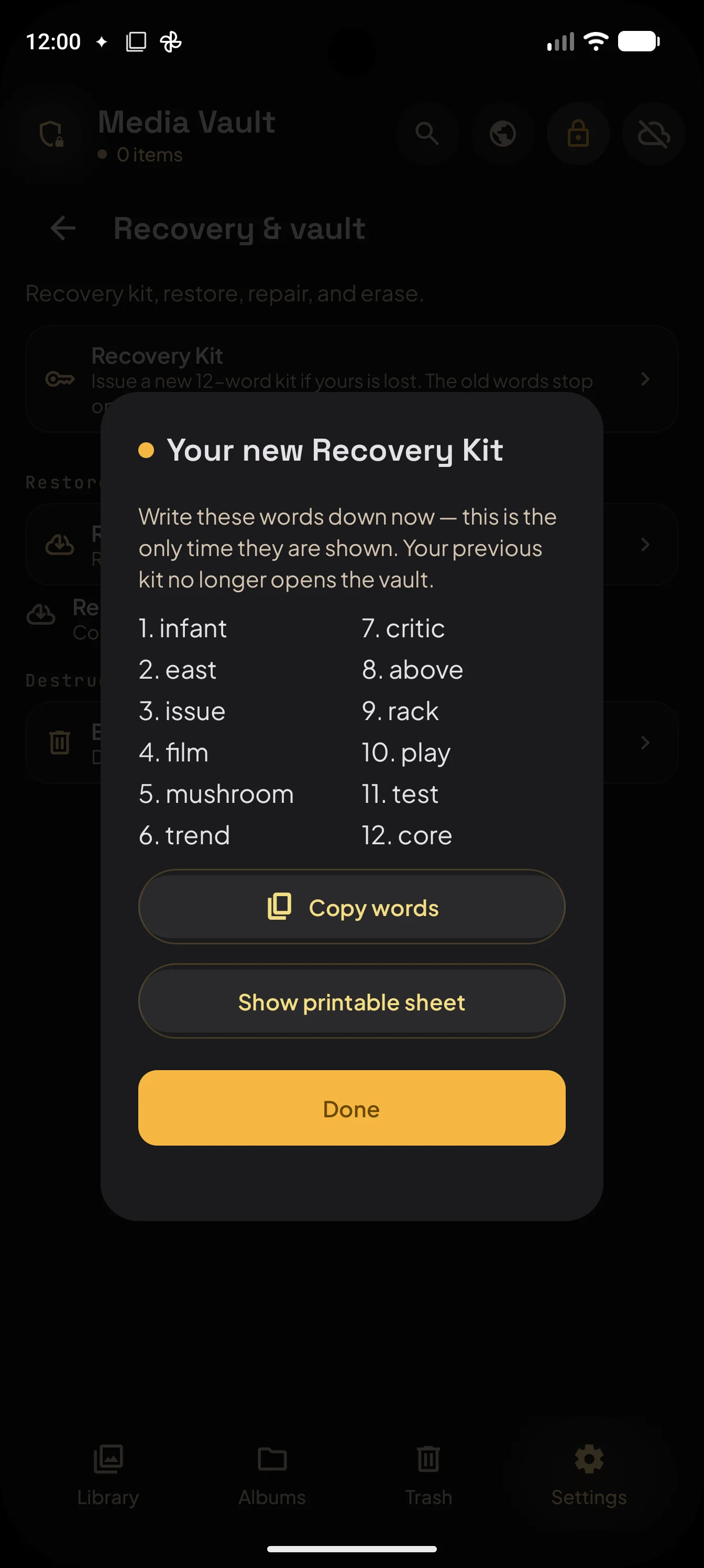
Forgot your PIN? Enter your 12 recovery words to set a new one. Your files stay put.
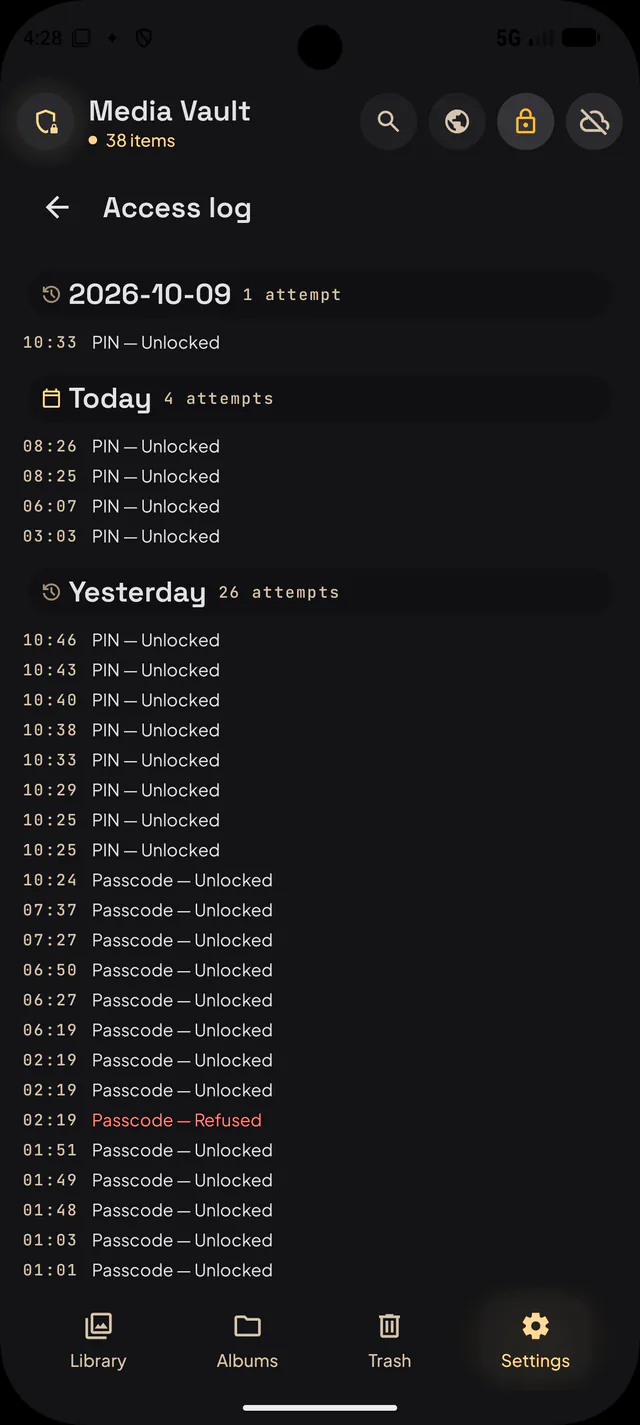
See every unlock attempt, with a photo of anyone who gets your PIN wrong.
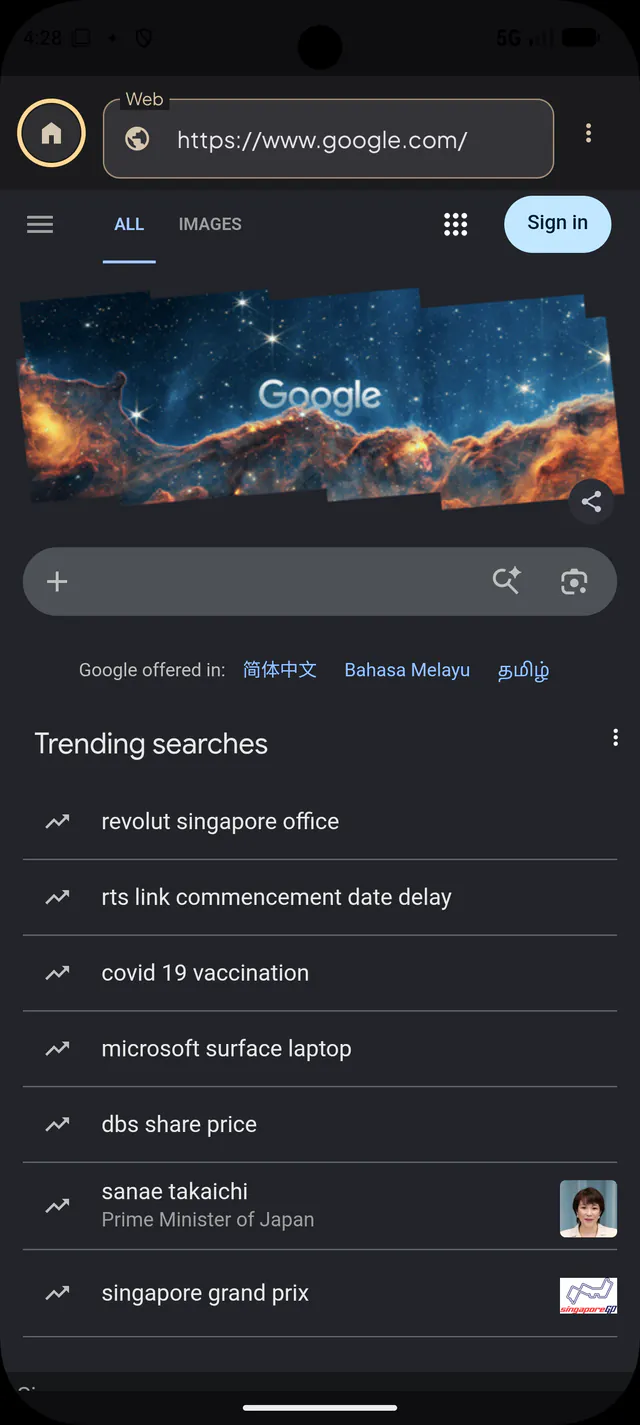
Browse privately and save media straight into the vault.
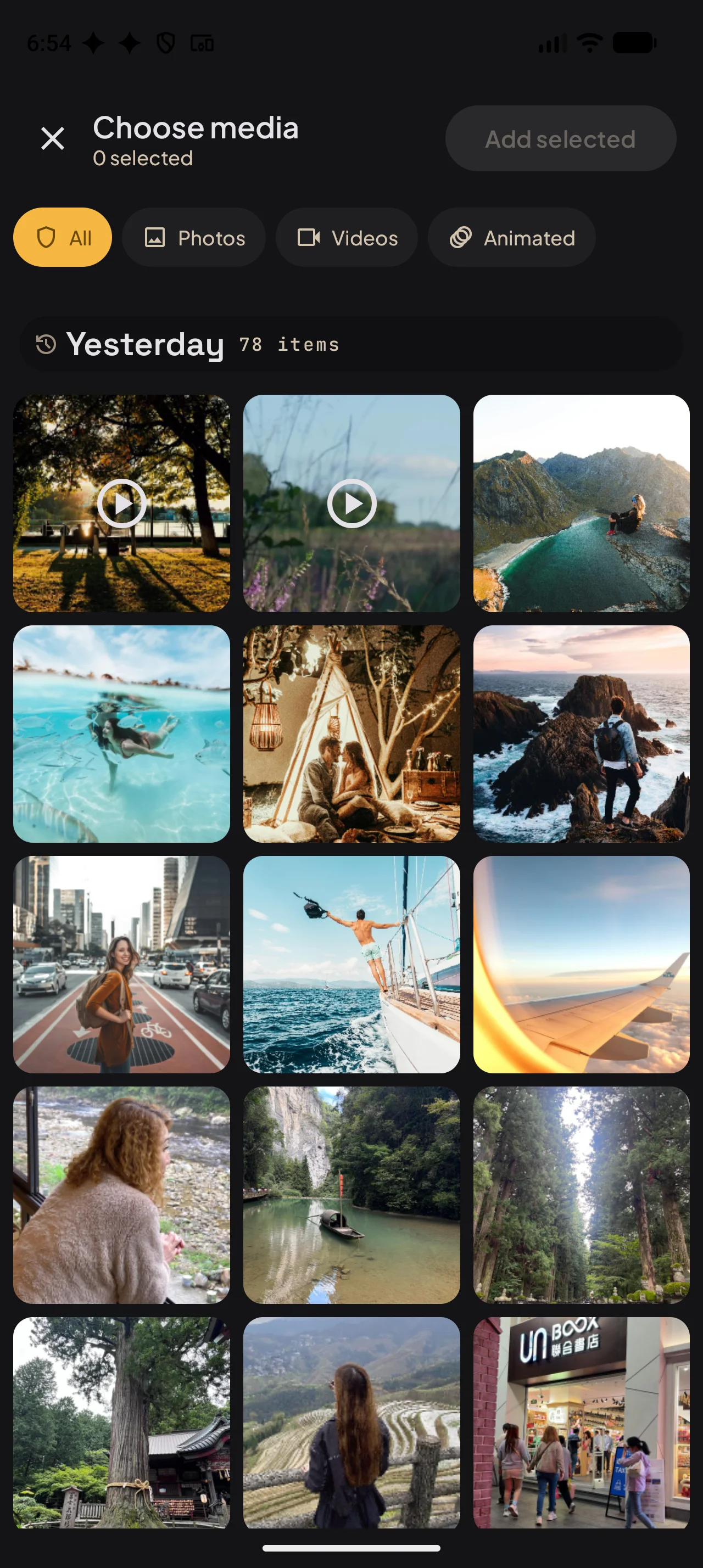
Move photos and videos from your gallery in a few taps.
Zero-knowledge backup to Google Drive. Files are encrypted before upload, and Lefila cannot decrypt them.
Deleted something by mistake? Bring it back from Trash.
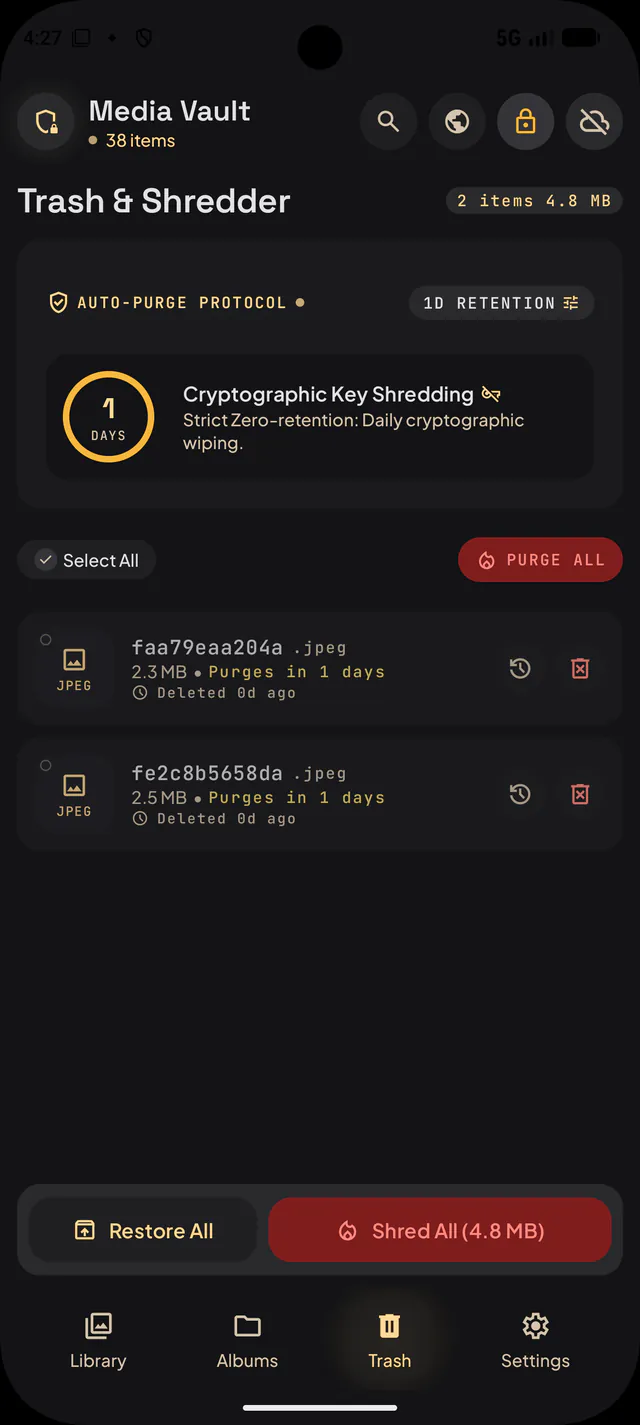
Pick the look that suits you, day or night.
Sort hidden media into albums that make sense to you.
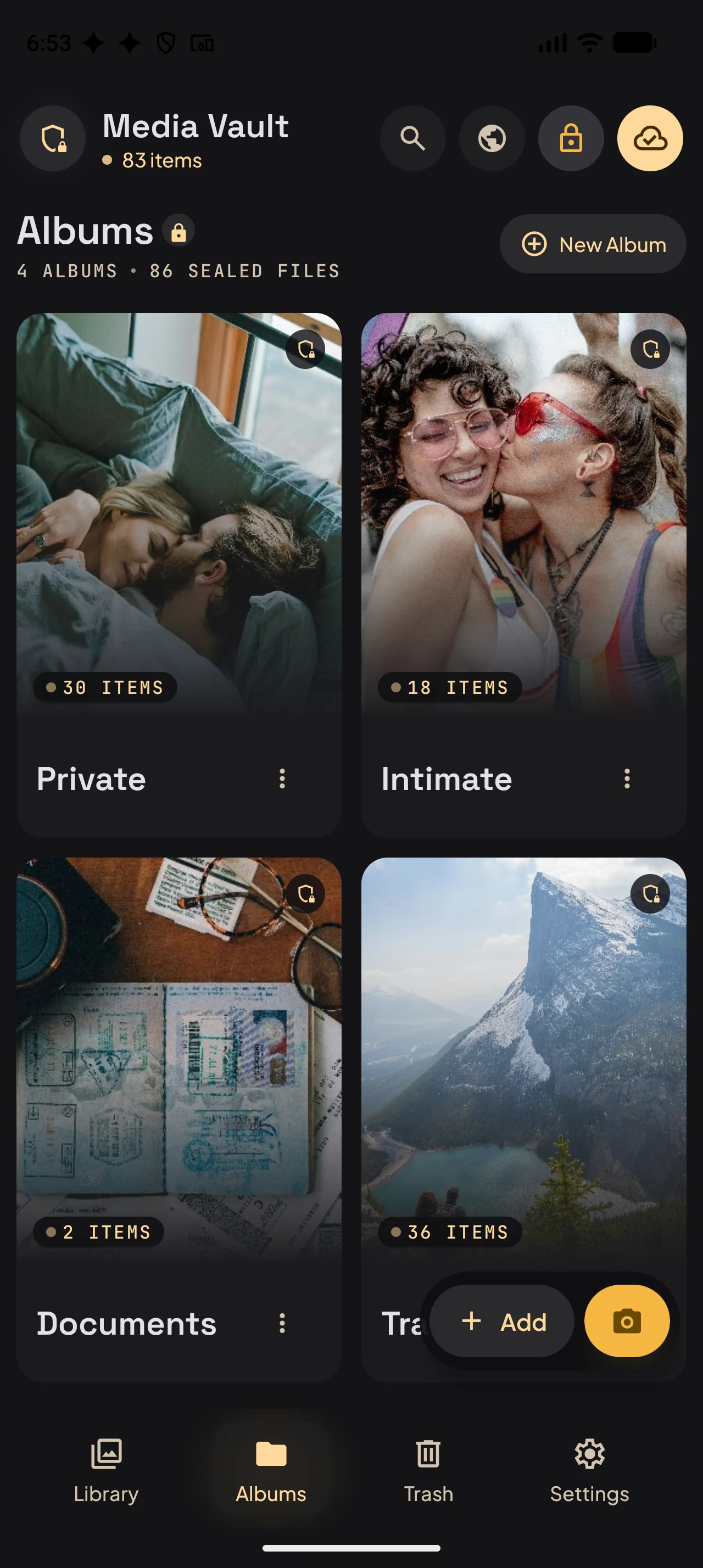
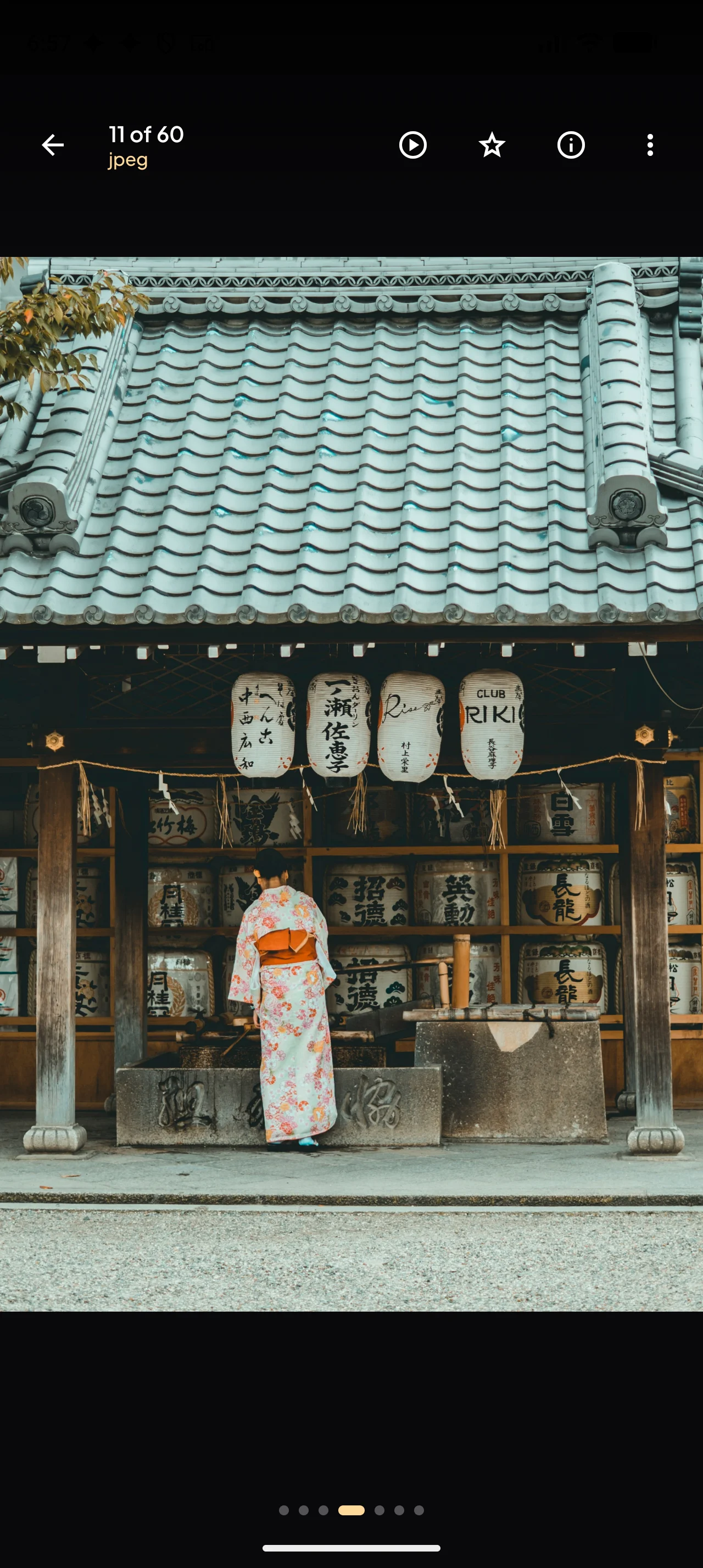
View photos, videos and GIFs without leaving the vault.
QUICK GUIDES
Create a PIN or passcode, then add your first photos and videos.
02Move media from your gallery and sort it into albums.
03See what AES-256 encryption covers and how the decoy vault works.
04Set up Google Drive sync, or follow the export and import steps.
FAQ
Clear answers about what stays on your phone, what syncs, and how to keep access to your files.
Browse the docs →Yes. Each imported photo and video is encrypted with AES-256, including the complete file rather than only its header or preview. Encryption is on by default.
No. Your vault is stored on your device, and files are decrypted only there, after you unlock the app. With Google Drive sync (Pro), files are encrypted before they leave your phone, and Lefila cannot decrypt or view the backup.
No. Media Vault has its own PIN or passcode, separate from the code that unlocks your phone. Choose a different one, so someone who knows your phone passcode still does not know your vault PIN. Avoid birthdays and repeating digits like 1111.
Yes. After you set a PIN or passcode, you can turn on biometric unlock in Settings → Security. Leave it off if someone else has a face or fingerprint set up on your phone, because they could open the vault too.
Use your recovery kit: tap Forgot PIN? on the lock screen, enter your 12 words and choose a new PIN or passcode. Your files stay in the vault. For your security, Lefila cannot see your PIN or your words, or decrypt your vault or Google Drive backup for you.
Your recovery kit is 12 words that let you set a new PIN or passcode on your phone if you forget yours, with your files still in the vault. You get it when you set up Media Vault and can see it again in Settings. It is not a backup: to keep copies of your files, use Google Drive sync (Pro) or export them.
Write the words down, save or print the kit, or copy the words into a password manager. Keep them private, because anyone with your phone and your 12 words could set a new PIN. If you lose them, find the kit in Settings while you can still unlock the vault and save it again.
The decoy vault is part of Pro. Set a second PIN in Settings and add the everyday items you want it to show. Entering that PIN opens the decoy instead of your main vault. It changes which collection opens; it is not a guarantee that another vault can never be discovered.
Yes, with Pro. Open Settings → Security & Privacy → Access log to see when the vault was opened and every failed attempt, with intruder photos of anyone who got your PIN wrong. If you see anything unexpected, change your PIN.
No. Setting up the vault only takes a PIN or passcode. If you turn on Google Drive sync (Pro), you connect your Google account for the backup.
Yes. Media Vault keeps photos, videos and GIFs, and you can view and play them in the built-in viewer without leaving the vault. Photos you take with the camera button go straight into the vault.
Only if Delete original after import is on in Settings → Library & imports. Media Vault then removes each original once it is safely sealed in the vault. This works with local media on Android and with Photos on iOS, where removed photos wait in Recently Deleted. Copies in other apps or backups need to be managed there.
With Pro, turn on Google Drive sync on your old phone and wait for it to finish. On the new phone, use the same Google account to restore. Keep the old phone until you have checked the restored files. On the free version, export files from the old phone, move them to the new phone, and import them into Media Vault.
No. Google Drive sync is an optional Pro feature that you turn on in Settings → Sync & backup. The first upload must finish before those files are available to restore. Without sync or an export, the vault is stored on that device.
With sync enabled, Media Vault encrypts files on your device before upload. This is zero-knowledge backup: Lefila cannot decrypt or view your files. Google Drive stores encrypted backup data, not viewable photo or video originals. Sync is available with Pro.
It means Lefila does not hold the keys to your backup. With Google Drive sync (Pro), files are encrypted on your phone before upload, so Google Drive stores encrypted data and Lefila cannot decrypt or view it. AES-256 describes how the files are encrypted; zero-knowledge describes who can decrypt them.
Google Drive stores encrypted backup data, not regular photo or video files to preview. Lefila cannot decrypt the backup. Restore through Media Vault using the Google account connected to Sync & backup.
Files stored only on the phone are removed when the app is uninstalled. Pro users should let Google Drive sync finish and verify the backup first. Free users should export their files before uninstalling.
Only if you backed them up or exported them first. With Pro, if Google Drive sync had finished, install Media Vault again and sign in with the same Google account to restore. Exported files can be imported again. Lefila cannot recover files that were stored only on the phone.
Wi-Fi Transfer is a Pro feature under development for sending files between an Android phone and a computer browser over local Wi-Fi. Pairing and connection setup use a local WebSocket; photos, videos and gallery data travel directly between the devices over encrypted WebRTC. Media is not uploaded to Lefila's servers, and Wi-Fi Transfer is separate from Google Drive backup. Some browsers may flag or block the local WebSocket as mixed content, so the feature is not generally available.
Only after you approve gallery access on Android. The browser can then see album names, thumbnails, file names and capture dates, and download the items you select for that session. Media travels directly between the devices over encrypted WebRTC. The website and optional network-discovery services may process connection metadata, such as IP addresses, but do not receive your media files.
The transfer website uses HTTPS, while the local connection to your Android phone uses a WebSocket (ws://) that is not encrypted at the transport level. Some browsers flag or block this as mixed content. The warning concerns connection setup; media still travels over encrypted WebRTC. Pairing and signaling must still be authenticated to protect against tampering. Do not bypass browser security warnings.
Not yet. Wi-Fi Transfer currently supports Android only. Physical-device compatibility testing and an independent security review are still pending, and the feature is not generally available.
Yes. Media Vault is free to download and use. Pro adds the decoy vault, Google Drive sync, the access log with intruder photo capture, custom app icons and more. Details are shown in the app.